My Project Charter template is the tool I use to align client expectations and build trust from day one. It takes 15 minutes to fill out and stops the phrase “but I thought this was included” in its tracks.

As part of my lifelong philosophy of finding ways to get things done faster so I can get back to my life, without compromising the quality of the work itself, I’ve put up this post series to help you guys spend less time modeling!

No one wants to spend 10 hours modeling then put up with IDunnoHowManyHours rendering right after; we all need time for other parts of our lives.

So, I put together these tips I used myself that really made a difference in how many hours I spend on modeling and rendering. Starting with part one, there will be two more parts that can make your models lighter + bonus: keep your sanity intact. #win

Use a 3 Button Mouse

41889pepD7L

I think everyone has a 3 Button Mouse these days; If you do and know how to use it then skip this, but if you don’t then I suggest you go and buy one of them awesome gadgets. It’s the 21st Century for God’s sake.. This will help with navigating you model in just a few clicks, as in:

  • Left Button: Select
  • Right Button: Drag
  • Wheel Click: Pan
  • Wheel Scroll: Zoom

And of course you can customize the uses of these buttons in Sketchup’s settings (Preferences). Leave a comment below for detailed instructions.

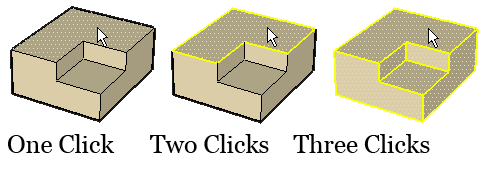
One Click + Two Clicks + Three Clicks
 

prin-SelectExpand

The difference is when you have a shape:

One click selects the surface.

Two clicks select the surface and its Edges.

Three clicks select the whole shape and whatever is attached to it via Lines.

If your Object is Grouped or a Component the One click selects it. Two clicks open the Group or Component to Edit. Three clicks opens and selects the whole Object.

No need for Right Clicks to open those pesky menus here!


Get a Better View of Things


To have a better view of what’s going on while working there are a few things you need to do first in order to tidy up that work space.

1.Organize and Minimize those Icons:

This is just personal preference; it’s like how you organize your closet, desk, or shelves. But if you’re a newbie or frustrated with how things look then maybe you should try this out:

Go to ‘Toolbars…’ to adjust the layout of the work space

Screenshot (2)

Uncheck everything, then select the following:

Screenshot (6)

 And to minimize the Size of all those Icons, Uncheck ‘Large Icons’ in ‘Options’ tab.

Screenshot (4)

After pushing around the toolbars to fit my use, this is how the work space looks compared to the Default one:

Screenshot (1)

Screenshot (7)

As I said, it’s a personal preference; if you’re not attached to your current layout, or still new to Sketchup then give this one a spin and then you can go from there and create your own.

2. Get rid of Thick Lines:

Another thing that helps you see better, make your model lighter, and have your model looking neater is Turning Sketchup’s default Thick Lines to Normal or Thin Lines. This will help you see small details more clearly among a lot of other aesthetic and mental stability reasons.

To do this, go to Edge Style and uncheck everything in the Sub-Menu except Edges:

Screenshot (9)

End result will be from this:

Screenshot (8)

To This:

Screenshot (10)


This is Part One of these tips..

Part Two can be found here

Part Three can be found here

For one on one training for Sketchup + VRay, go here.

Get Weekly Updates on New Posts + Access to a ton of Free Resources


Leave a comment with any questions or suggestions that you have and I’ll get back to you ASAP 🙂

Ravenor's Design Academy | Sketchup Modeling Hacks: Easy tips that save your time (Part One)


3 responses to “Sketchup Modeling Hacks: Easy tips that save your time (Part One)”

  1. […] isn’t lagging. Check out the post on lagging here. Part one of this series can be found here. Part three of this series can be found […]

  2. […] options to save on modeling time. In case you missed the previous parts, you’ll fine them here and […]

  3. […] case you missed the previous part, here it is. Multiple Selections Multiple selections can be a hassle sometimes, especially if […]

Leave a Reply

We use cookies to personalise content and ads, to provide social media features and to analyse our traffic. We also share information about your use of our site with our social media, advertising and analytics partners. View more
Cookies settings
Accept
Privacy & Cookie policy
Privacy & Cookies policy
Cookie name Active

Privacy & Cookies Policy for Ravenor’s Design Academy

Last updated: April 20, 2025 Ravenor’s Design Academy ("we", "us", "our") is committed to protecting your privacy and providing transparency about how we collect, use, and share your data. This combined Privacy & Cookies Policy explains our practices when you visit https://www.ravenorsdesign.com, subscribe to our newsletter, or otherwise interact with our services.

1. Information We Collect

a. Personal Information You Provide

  • Contact Details: Name and email address when you sign up for our newsletter or contact us.
  • User Submissions: Comments, feedback, or messages you send via forms or email.

b. Automatically Collected Information

  • Log Data: IP address, browser type/version, operating system, pages viewed, referral URLs, and timestamps.
  • Usage Data: Session duration, click paths, and interactions on the site.

c. Third‑Party Data

  • Social Media: If you link or share via social platforms (LinkedIn, Facebook, X, Instagram), we may receive basic profile information as permitted by your privacy settings and the platform’s API.

2. Cookies & Tracking Technologies

a. What Are Cookies?

Cookies are small text files placed on your device to store preferences, track site usage, and enable certain features. We use cookies, web beacons, and similar technologies ("tracking technologies") to enhance your experience.

b. Types of Cookies We Use

  1. Essential Cookies: Required for basic site functionality (e.g., form submissions, sign‑in). These cannot be disabled.
  2. Performance & Analytics Cookies: Collect anonymous data on site usage and performance to help us optimize content and design.
  3. Functional Cookies: Remember your preferences (e.g., language, form entries) for a personalized experience.
  4. Advertising & Targeting Cookies: Third‑party cookies that deliver relevant ads based on your browsing history (if applicable).

c. Third‑Party Cookies

We partner with trusted analytics and marketing providers (e.g., Google Analytics, Mailchimp) who may set cookies via our site to help us analyze traffic, measure campaign effectiveness, and improve our services.

d. Managing Cookies

You can manage or delete cookies through your browser settings at any time:
  • Chrome: Settings > Privacy and security > Cookies and other site data
  • Firefox: Options > Privacy & Security > Cookies and Site Data
  • Safari: Preferences > Privacy > Manage Website Data
Note: Disabling cookies may affect site functionality and your ability to access certain features.

3. How We Use Your Information

  • Service Delivery: Send newsletter content, downloadable resources, and updates based on your preferences.
  • Communication: Respond to inquiries, provide support, and inform you of policy changes.
  • Analytics & Improvement: Analyze usage patterns, A/B test content, and optimize user experience.
  • Marketing: With your consent, deliver promotional content about new posts, resources, or events. Unsubscribe options are provided in every email.

4. Sharing & Disclosure

  • Service Providers: We share data with vendors (hosting, email, analytics) under confidentiality agreements.
  • Legal Requirements: We may disclose data to comply with legal obligations or protect rights.
  • No Sale of Data: We do not sell, trade, or rent your personal information to third parties.

5. Data Security & Retention

  • We employ SSL encryption, firewalls, and access controls to safeguard your data.
  • Data is retained only as long as necessary for the purposes described or as required by law.

6. Your Rights

Depending on your jurisdiction, you may have rights to:
  • Access, correct, or delete your personal data.
  • Restrict or object to processing.
  • Withdraw consent for marketing communications.
  • Lodge a complaint with a supervisory authority.
To exercise these rights, contact us at hello@ravenorsdesign.com.

7. Children’s Privacy

Our services are not intended for individuals under 16. We do not knowingly collect data from minors. If you believe we have, please contact us for deletion.

8. International Data Transfers

Your data may be processed and stored outside your country. We implement safeguards, such as Standard Contractual Clauses, to protect your data when transferred internationally.

9. Changes to This Policy

We may update this policy periodically. The "Last updated" date at the top reflects the most recent revision. We will notify subscribers of material changes via email or site notice.

10. Contact Us

If you have questions or concerns about this Privacy & Cookies Policy, please reach out:

← Back

Thank you for your response. ✨

Thank you for trusting Ravenor’s Design Academy with your information.

End of Privacy & Cookies Policy  
Save settings
Cookies settings