My Project Charter template is the tool I use to align client expectations and build trust from day one. It takes 15 minutes to fill out and stops the phrase “but I thought this was included” in its tracks.

Advertisements


If you’re looking to fix the Shadow/Sun problem caused by the HDRI, go HERE.

Hello Designers!
Due to a lot of questions arising on “Black Backgrounds” or “Black Screens” issues that encounters a lot of my readers I’ve decided to give it its own post that will be updated regularly with different fixes to the problems that can cause these issues.

The fact that certain render options work for some people and not work for others is a known issue when it comes to VRay; since VRay relies on what type of hardware you’re using it on.

I face problems like these when test rendering a certain model on my laptop when I’m out and then when I open the same file with the same settings on my Desktop PC at home to do a final render, I often have to tweak a bit so I can get the same results.

After you follow the steps in This Post, Some of you commented and emailed me about a black background where your pictures are supposed to be, and some even got a black screen where their renders are supposed to appear.

How To Fix the Black/Transparent Background Issue?

Fix #1

Follow the steps as I mentioned in the post to add your desired background and then in the ‘Environment‘ tab, change the value of ‘GI (Skylight)‘ to a bigger value; start with 2 or 5 or 10, 15, 50, etc.
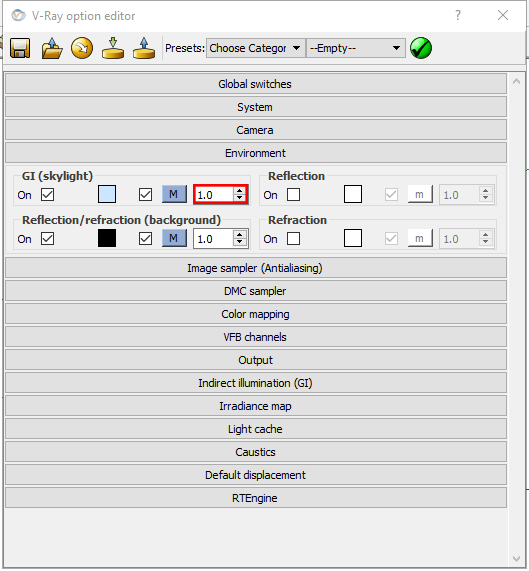
Ravenor's Design Academy | Fixing the "Black Background" issue when using Enviroment Background | VRay 2

What value to go with depends on your machine, VRay version, and/or Sketchup version.

Fix #2

In the ‘Environment‘ tab, change the value of ‘Reflection/Refraction (Background)‘ to a bigger value; start with 2 or 5 or 10, 15, 50, etc.

The value will, again, depend on a lot of factors.
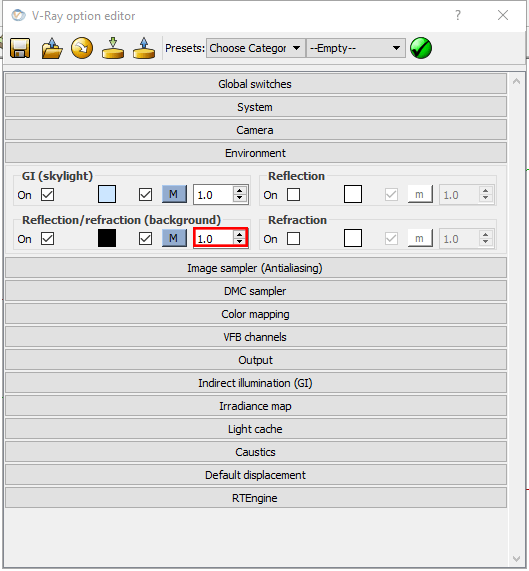
Ravenor's Design Academy | Fixing the "Black Background" issue when using Enviroment Background | VRay 2

This could also help the “Transparent Background” issue, since sometimes you have to play with both values to get everything to show correctly.

Fix #3

This fix is mostly used for the “Transparent Background” issue, but on some machines it’ll fix the Black BG too.

When saving your output image, make sure you choose JPEG or JPG instead of PNG.
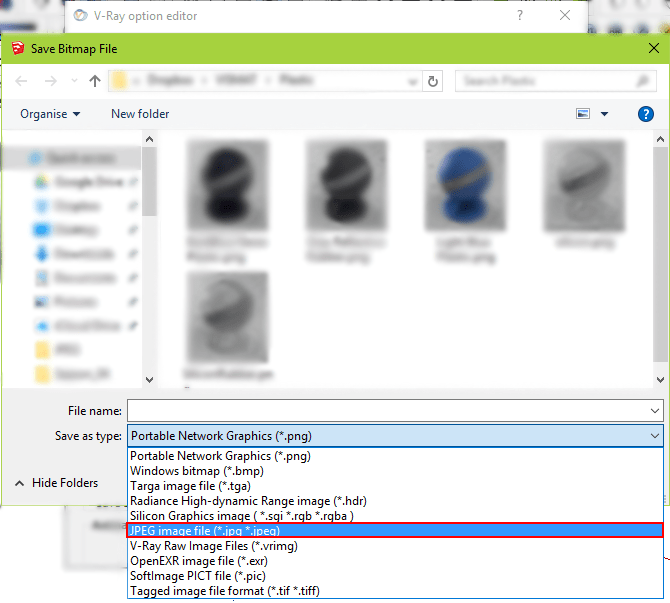
Ravenor's Design Academy | Fixing the "Black Background" issue when using Enviroment Background | VRay 2

In PNG format the background is usually either Transparent, White, or in some cases Black when there is no BG image, and sometimes it gets stuck that way even if there was a BG image so changing it to JPEG should take care of that.

Let me know how this works out for you, and if you encounter any other issues/have any other solutions leave a comment below!

Happy Designing 🙂


Your Support would make my day!


Advertisements


14 responses to “Fixing the “Black Background” issue when using Enviroment Background | VRay 2”

  1. i have some strange problem regarding vray sky….. i want to upload my model … can u please help me out…???

    1. Sure! You can contact me directly via the Facebook page: fb.me/Ravenors.co

  2. Thaks mam…this is very helpful part….

  3. Breanna Gregory Avatar
    Breanna Gregory

    Thank you for all your help! I unfortunately have tried everything to fix this background issue and none of your solutions have worked. When I select to save file as JPEG is does but still opens as a PNG… The background i want will flash for a moment when the picture opens but then changes to bright white. Any ideas how to fix this?

    1. I think this is not a render issue. Have you tried uninstalling VRay, restarting your computer, then installing VRay again?
      From what you’re saying, the background shows up, but glitches when saved. Reinstalling VRay should fix whatever is making your pictures glitch when saved.

      1. Breanna Gregory Avatar
        Breanna Gregory

        Thanks for the quick response Angie!I tried uninstalling but it still didn’t work unfortunately.

        1. Well, it can be your graphics card or some other software interference. Have you tried SketchUcation.com for answers?

  4. I really appreciate your post, same problem solved with the third fix, neither GI nor Reflection did help. Thank you very much!

    1. Glad this helped you 🙂

  5. Please I’m having problems rendering, after my rendering, all the images will be black. Please I need a full V-Ray 2.0 setting for my SketchUp 2015 please.

    1. You can find them in the Library 🙂

  6. Angie – big thanks for your posts on the black screen issue for background images in Vray. Your suggestion to save as JPEG instead of PNG saved the day for our client meeting today. You rock!
    Bob S

    1. You’re very welcome!

  7. […] any issues such as a Black Background or a Transparent Background, please head over to this post HERE for a […]

Leave a Reply

We use cookies to personalise content and ads, to provide social media features and to analyse our traffic. We also share information about your use of our site with our social media, advertising and analytics partners. View more
Cookies settings
Accept
Privacy & Cookie policy
Privacy & Cookies policy
Cookie name Active

Privacy & Cookies Policy for Ravenor’s Design Academy

Last updated: April 20, 2025 Ravenor’s Design Academy ("we", "us", "our") is committed to protecting your privacy and providing transparency about how we collect, use, and share your data. This combined Privacy & Cookies Policy explains our practices when you visit https://www.ravenorsdesign.com, subscribe to our newsletter, or otherwise interact with our services.

1. Information We Collect

a. Personal Information You Provide

  • Contact Details: Name and email address when you sign up for our newsletter or contact us.
  • User Submissions: Comments, feedback, or messages you send via forms or email.

b. Automatically Collected Information

  • Log Data: IP address, browser type/version, operating system, pages viewed, referral URLs, and timestamps.
  • Usage Data: Session duration, click paths, and interactions on the site.

c. Third‑Party Data

  • Social Media: If you link or share via social platforms (LinkedIn, Facebook, X, Instagram), we may receive basic profile information as permitted by your privacy settings and the platform’s API.

2. Cookies & Tracking Technologies

a. What Are Cookies?

Cookies are small text files placed on your device to store preferences, track site usage, and enable certain features. We use cookies, web beacons, and similar technologies ("tracking technologies") to enhance your experience.

b. Types of Cookies We Use

  1. Essential Cookies: Required for basic site functionality (e.g., form submissions, sign‑in). These cannot be disabled.
  2. Performance & Analytics Cookies: Collect anonymous data on site usage and performance to help us optimize content and design.
  3. Functional Cookies: Remember your preferences (e.g., language, form entries) for a personalized experience.
  4. Advertising & Targeting Cookies: Third‑party cookies that deliver relevant ads based on your browsing history (if applicable).

c. Third‑Party Cookies

We partner with trusted analytics and marketing providers (e.g., Google Analytics, Mailchimp) who may set cookies via our site to help us analyze traffic, measure campaign effectiveness, and improve our services.

d. Managing Cookies

You can manage or delete cookies through your browser settings at any time:
  • Chrome: Settings > Privacy and security > Cookies and other site data
  • Firefox: Options > Privacy & Security > Cookies and Site Data
  • Safari: Preferences > Privacy > Manage Website Data
Note: Disabling cookies may affect site functionality and your ability to access certain features.

3. How We Use Your Information

  • Service Delivery: Send newsletter content, downloadable resources, and updates based on your preferences.
  • Communication: Respond to inquiries, provide support, and inform you of policy changes.
  • Analytics & Improvement: Analyze usage patterns, A/B test content, and optimize user experience.
  • Marketing: With your consent, deliver promotional content about new posts, resources, or events. Unsubscribe options are provided in every email.

4. Sharing & Disclosure

  • Service Providers: We share data with vendors (hosting, email, analytics) under confidentiality agreements.
  • Legal Requirements: We may disclose data to comply with legal obligations or protect rights.
  • No Sale of Data: We do not sell, trade, or rent your personal information to third parties.

5. Data Security & Retention

  • We employ SSL encryption, firewalls, and access controls to safeguard your data.
  • Data is retained only as long as necessary for the purposes described or as required by law.

6. Your Rights

Depending on your jurisdiction, you may have rights to:
  • Access, correct, or delete your personal data.
  • Restrict or object to processing.
  • Withdraw consent for marketing communications.
  • Lodge a complaint with a supervisory authority.
To exercise these rights, contact us at hello@ravenorsdesign.com.

7. Children’s Privacy

Our services are not intended for individuals under 16. We do not knowingly collect data from minors. If you believe we have, please contact us for deletion.

8. International Data Transfers

Your data may be processed and stored outside your country. We implement safeguards, such as Standard Contractual Clauses, to protect your data when transferred internationally.

9. Changes to This Policy

We may update this policy periodically. The "Last updated" date at the top reflects the most recent revision. We will notify subscribers of material changes via email or site notice.

10. Contact Us

If you have questions or concerns about this Privacy & Cookies Policy, please reach out:

← Back

Thank you for your response. ✨

Thank you for trusting Ravenor’s Design Academy with your information.

End of Privacy & Cookies Policy  
Save settings
Cookies settings