

Hey designers, Looking for a way to get the best renders? You’ve come to the right place.
With the title in mind, this tutorial about adjusting VRay Settings aka ‘the Options menu values’.
If you ever wandered through that menu, you will find that all options are adjustable numerically, hence the ‘values’.
Not to bore you with details; in short, these options are responsible for the way your work is rendered (Details, shadow, light, brightness, etc.).
Note that I am using VRay 2.4 for SketchUp, other versions may vary a little bit, but not entirely different.
The Default Options in VRay for SketchUp are set up so that certain elements of VRay are already good to go. This is great because certain aspects that are specific to VRay are already configured with the proper settings. Other values are adjusted according to version, machine model, graphics card, and personal preference.
For VRay Light Settings you can go Here.
The most important thing when rendering are the options associated with Light and How Light Reacts and Bounces off Certain Objects and Materials, like Indirect Illumination, Irradiance Map, Camera, Environment, and Light Cache. You’ll need to pay extra attention to those.
For adding a VRay Sky you can go Here.

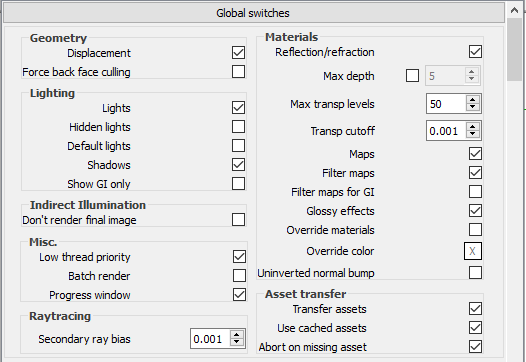
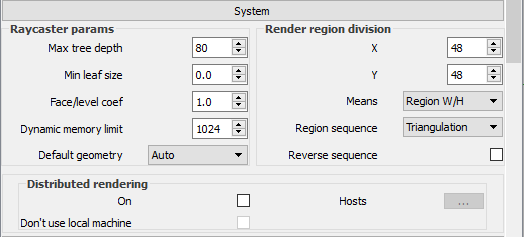
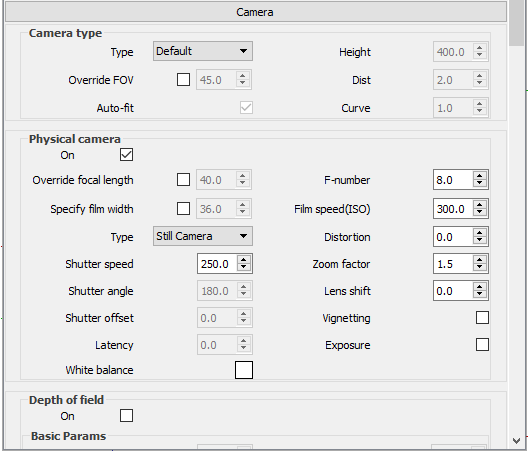
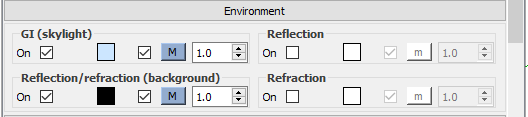
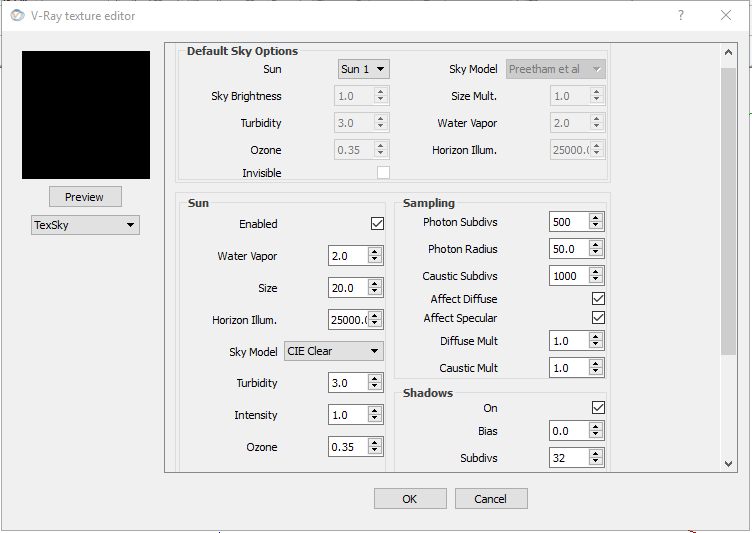
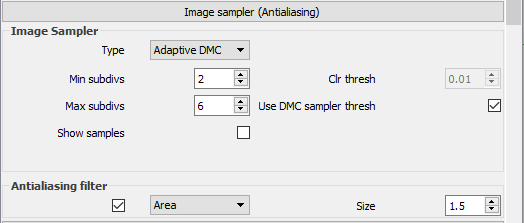

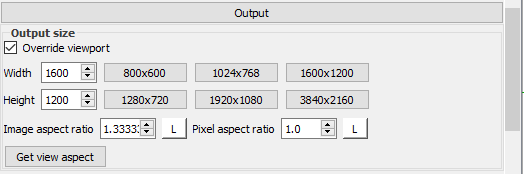


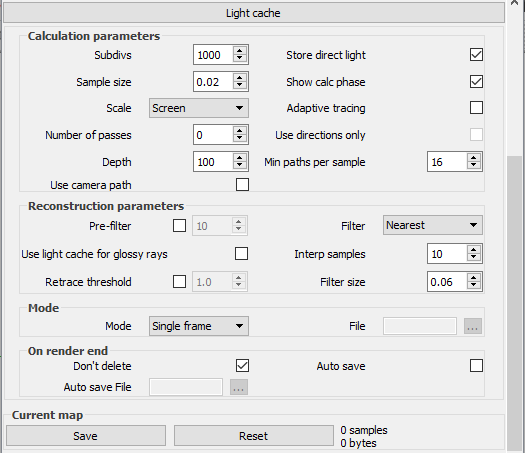
 at the top of the window, and give your settings a name, then save them in an easily accessed place (You will need to load them every time you start a new project).
- 800×600:
- Min/Max: -3/1
- 1600×1200:
- Min/Max: -5/-2
- 3200×2400:
- Min/Max: -6/-3
- 6400×4800:
- Min/Max: -7/-4
One more thing to know about Irradiance Map is that the smaller the values in Min/Max, the higher the quality of the render, and the slower it gets. The higher the values of the Min/Max, the lower the quality of the render, and the faster it gets.
But, the values above should be fine for you, it gives me good quality at a reasonable render time, so it should do that for you too.


- Wood (Grainy Surface)
- Metal (Polished Surface)
- Glass (Translucent)
- Stone (Rough texture)
- Plastic (Glossy Surface)
- Ceramic (Mirror Surface)
- Enamel (Shiney Surface)
- Fabric (Soft Texture)

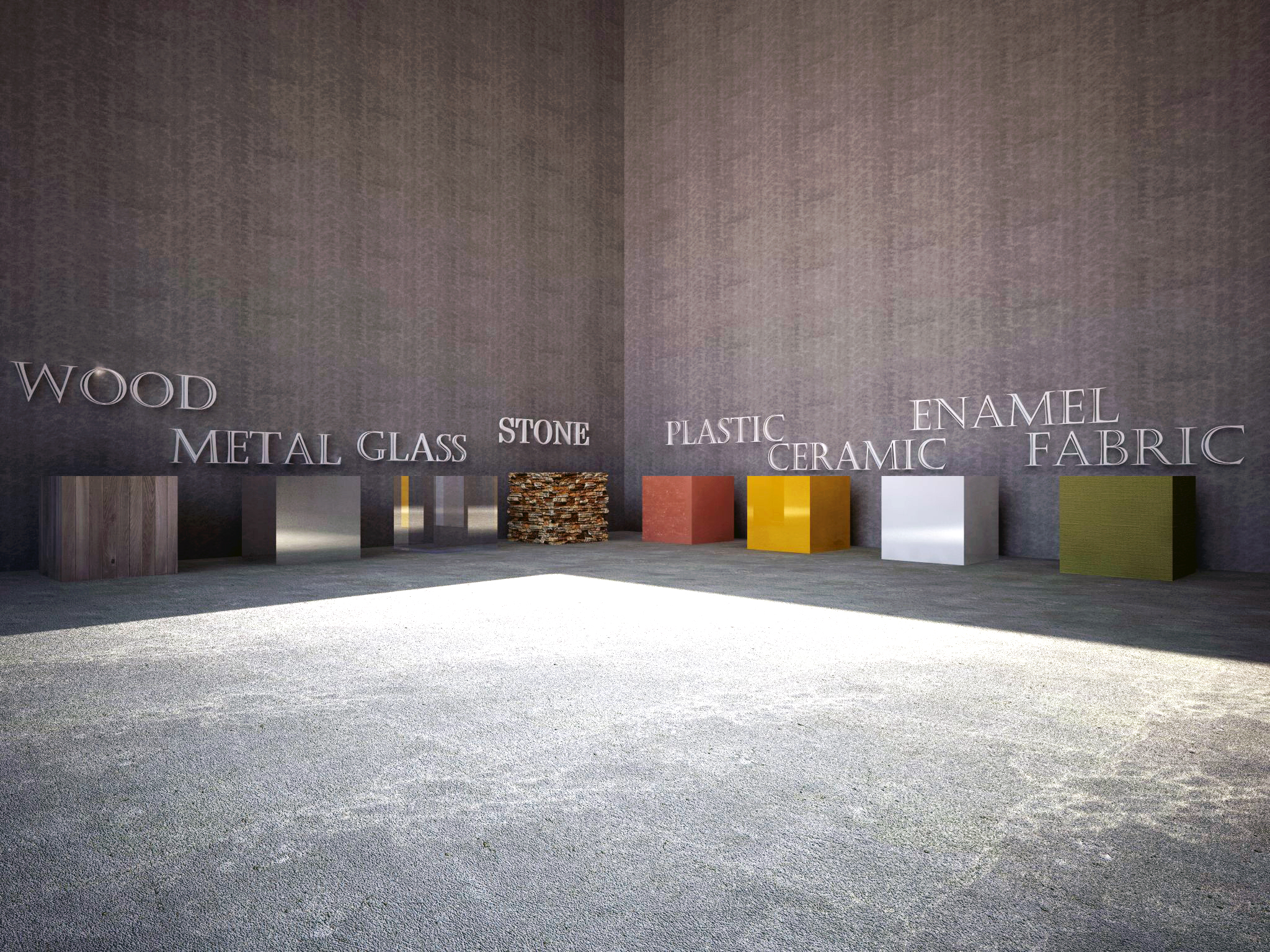
- A couple of close ups to the materials for details:


Leave a Reply